|
Programming Taskbook |
|
|
||
|
Electronic problem book on programming |
||||
|
© M. E. Abramyan (Southern Federal University, Shenzhen MSU-BIT University), 1998–2026 |


|
|
Introduction to Iterators and Algorithms: STL1Iter17Creating a Project Template and Getting Acquainted with the TaskThe tasks in the STL1Iter group introduce the student to such basic features of the standard library as iterators and algorithms. Iterators are objects that provide traversal of a sequence and access to its elements (one might say that an iterator is an abstraction of the pointer concept). Although iterators are typically used when working with containers, the simplest types of iterators — input iterators and output iterators — can be used in a program to access input/output streams. Therefore, one can start learning about iterators without prior study of STL containers (which are covered in the STL2Seq, STL4Str, and STL5Assoc groups). However, by themselves, iterators do not allow one to utilize all the capabilities of the standard library: for this, they must be used in conjunction with algorithms — functions from the STL library that perform various standard operations on data sequences and use iterators to access the sequences being processed. Thanks to the use of iterators, algorithms are not "tied" to a specific type of sequence (e.g., a container of a particular type) but can process any sequences that support working with iterators (even if they are not stored in memory but are, for instance, read from an input stream or, conversely, immediately sent to an output stream after element generation). In the tasks of the STL1Iter group, processing the initial data sets requires
using the simplest STL algorithms, which are applied directly to input/output streams via iterators
associated with them. The input/output streams used are standard file streams,
as well as the special Most of the important features of the STL1Iter task group can be illustrated by performing task STL1Iter17. STL1Iter17°. Given a string Name and a set of characters. Write to a text file named Name the doubled code values of all characters from the initial set in the same order, adding one space after each number. Use the ptin_iterator, ostream_iterator iterators and the transform algorithm. Performing a task using Programming Taskbook begins with creating a project template for the selected task.
The PT4Load software module, included in the problem book, is designed to create the template.
This module can be launched using the Load.lnk shortcut, which is automatically created in the student's
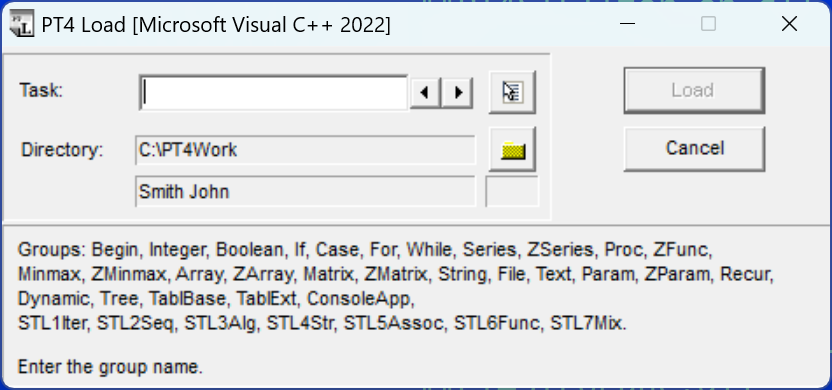
working directory. By default, the working directory is located on drive C and is named Starting from version 4.22, the PT4Load module can be launched using the auxiliary PT4Panel module, designed for quick launching of other modules and help system variants, as well as for quickly switching between different working directories. The task groups related to the C++ Standard Template Library are not part of the base set of the Programming Taskbook electronic problem book. For these groups to be available, it is necessary, after installing Programming Taskbook, to install its extension Programming Taskbook for STL — the problem book on the Standard Template Library. After launching the PT4Load module, its window will appear on the screen, listing all available task groups:
If scroll buttons are displayed to the right of the group list, then the list of groups can be scrolled using these buttons or the [Up] and [Down] keys. The window title indicates the name of the current programming environment and its version number. The provided figure corresponds to Microsoft Visual Studio 2022 for C++. When performing tasks dedicated to the C++ Standard Template Library, any programming environments
for C++ supported by the electronic problem book can be used. In version 4.26 of the problem book,
these are Microsoft Visual Studio 2017, 2019, 2022, 2026, Code::Blocks 20.03, Dev-C++ 5.11 and 6.30, and Visual Studio Code.
To change the current environment, the context menu of the PT4Load module should be invoked
(by right-clicking in its window or clicking the The STL1Iter group should be present in the group list in the PT4Load window. Its absence can be explained by two reasons: either a language other than C++ is selected as the current language, or the Programming Taskbook for STL extension is not installed on the computer. After entering the task name (in our case, STL1Iter17), the "Load" button in the PT4Load window will become available, and by clicking it (or pressing [Enter]), we will create a template for the specified task, which will be immediately loaded into the Visual Studio environment. The created project will consist of several files; however, to solve the task, we will only need the file named STL1Iter17.cpp. It is this file that will be loaded into the Visual Studio editor. Let's provide the text of the STL1Iter17.cpp file (this text will be the same for all programming environments that can be used to solve the task): #include "pt4.h"
using namespace std;
void Solve()
{
Task("STL1Iter17");
}
The file begins with the directive to include the Then, the Finally, the Note that the description of the startup function (which usually has the name To run the created program from Visual Studio and Visual Studio Code environments, it is sufficient to press the [F5] key. In the Code::Blocks environment, the [F9] key should be used, and in the Dev-C++ environment — the [F11] key.
Remark. If, when trying to run the program, Visual Studio attempts to perform another action,
then you should right-click on the project name After starting the program, the problem book window will appear on the screen:
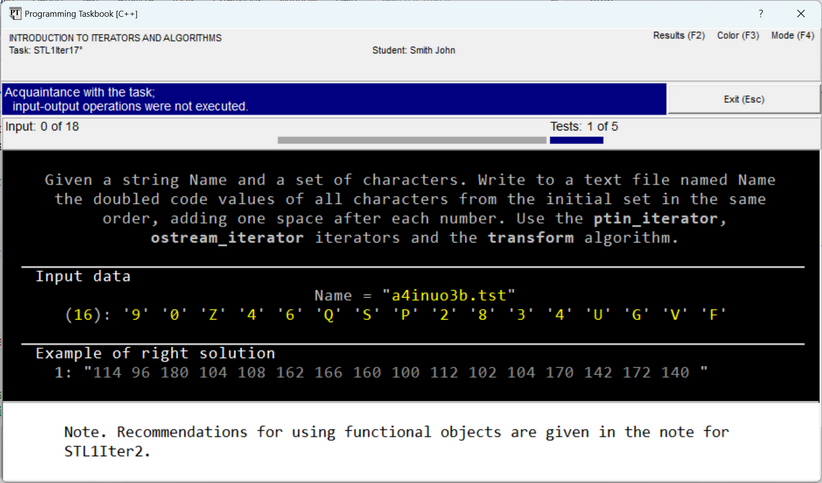
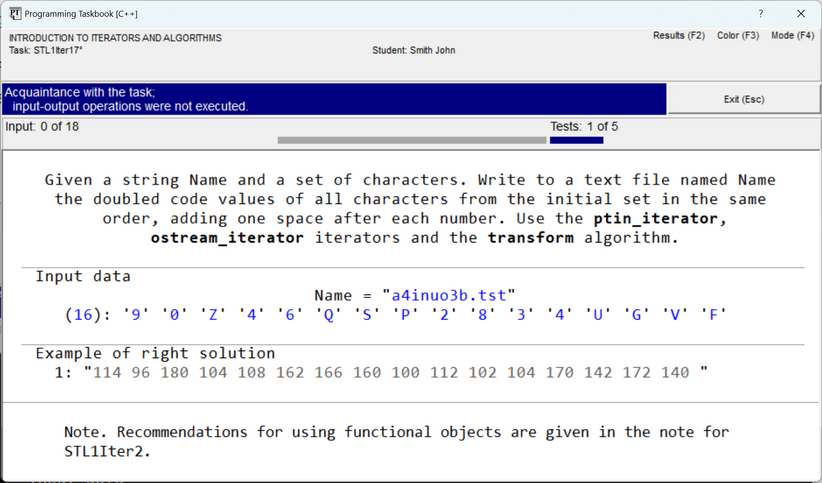
Since the program does not perform any data input and output actions, the program launch is considered as acquaintance run. After such a launch, the problem book window displays three sections containing the task formulation, the initial data, and an example of a correct solution. If there are notes associated with the task, they are displayed in the lower part of the window, in a special debug section (the capability for debug output will be described in detail later). All initial data are highlighted in a special color to distinguish them from comments: if the window is set to the "on black background" color mode (as in the figure above), the data is highlighted in yellow; in the "on white background" mode, the data is highlighted in blue. To switch the color mode, it is enough to press the [F3] key or click on the "Color (F3)" label in the upper right corner of the problem book window:
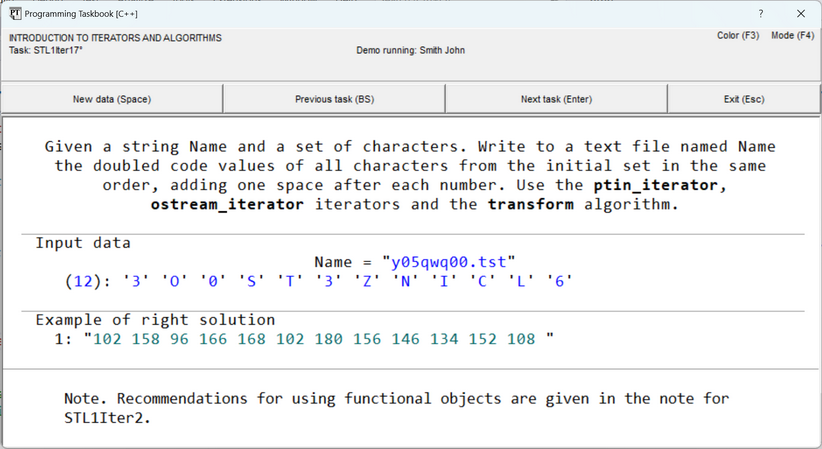
Running the program allows one to review the sample initial data and the corresponding example of a correct solution for these initial data. In our case, the set of initial data includes the name of the text file into which the resulting sequence should be written (this name is accompanied by the comment "Name =" and enclosed in double quotes), the number of elements in the initial character set (this number is enclosed in parentheses), and the character elements of the set themselves (each enclosed in single quotes). In all tasks included in Programming Taskbook for STL, all initial sequences provided by the problem book (except those contained in initial text files) are specified in a similar way: first, the number of elements in the sequence is indicated, and then — the values of the elements themselves (on the screen, the number of elements is enclosed in parentheses and separated from the list of values by a colon), and the values can be located on several screen lines. Character data is enclosed in single quotes, and string data — in double quotes, which corresponds to the representation of character and string constants adopted in the C++ language. The use of quotes allows, in particular, to "see" empty strings included in the sets of initial or resulting data, or strings that begin or end with spaces (as in the example of the correct solution shown in the previous figures). The section with an example of a correct solution contains a single text string that should be written to the resulting file; this string contains the doubled codes of all characters from the initial set, and after each code, it is required to specify one space. To exit the program, press the "Exit" button, the [Esc] key, or the [F5] key, i.e., the same key that launches the program from the Visual Studio environment (if using another environment, you can press the key intended for launching the program from that environment). To get more acquainted with the task, you can use two special modes of the problem book: the demo mode and the mode for displaying tasks in html format. To run the program in demo mode, it is sufficient to append the '?' symbol to the parameter
of the
To display the task in html format, it is sufficient to append the '#' symbol to the parameter of the The html mode is convenient in several respects. Firstly, only in this mode can one review the preambles to the task group and its subgroups, thereby obtaining additional information that may be useful when performing the tasks. Secondly, the browser window with the html page does not need to be closed to continue working on the task; thus, using this window, one can review the task formulation at any time, even if the current state of the program does not allow compiling and running it. Furthermore, the text of the task formulation contained in the web browser can be selected, copied, and pasted into the template text (formatted as a comment). It is possible to display all tasks included in a certain group in html mode.
To do this, in the parameter of the Starting from problem book version 4.21, the task can be displayed in html format directly from the problem book window; to do this, press the [F4] key or click on the "Mode (F4)" label in the upper right corner of the window. Concluding this overview of the problem book's capabilities for forming a project template and getting acquainted with the selected task, let's proceed to the description of the solution process itself. Performing the TaskLet's start performing the task by adding new #include "pt4.h" #include <fstream> #include <algorithm> using namespace std; Note that including the Now let's implement the input of initial data. According to the task condition,
the name of the resulting file is a given string. Let's input this name into a string variable void Solve()
{
Task("STL1Iter17");
string s;
pt >> s;
}
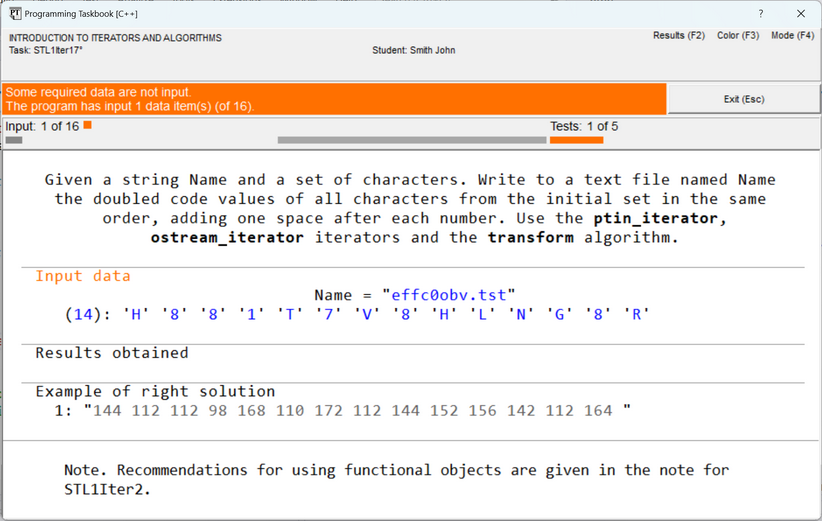
When running this version of the program, the problem book window will contain a message stating that not all required data have been input, and the message background will become orange:
Error messages are always displayed on a background whose color is a shade of red. For example, orange is associated with a situation where an insufficient amount of data has been input or output, crimson — if an excessive amount of data has been input or output, and purple — if there was an attempt to input or output data of the wrong type. The header of the window section related to the detected error is highlighted in the same color (in our case, the header of the input data section is highlighted). In the indicators section, located above the section with the task formulation, an orange square marker is also displayed, and it appears in the left part of the section (this part contains information about data input). It also indicates that only one element of the initial data out of 16 was actually read. Also note that the middle part of the indicators section lacks information about the output data. This is because, according to the task condition, it is not required to send the results to the problem book; instead, it is necessary to create a new file and write the obtained results into the created file. In such a situation, the problem book does not monitor the amount of output data but simply checks the contents of the created file. However, in our case, the result check did not occur, as an error related to inputting the initial data was identified earlier. To input the remaining data, one could read the number of elements and then, in a loop,
read the elements themselves and immediately process them (or save them in an array or another suitable container).
However, the task suggests using another method for input, based on the use of iterators —
as this method is most consistent with the "ideology" of the C++ standard library. Since the initial data
are provided by the problem book, a special iterator for the Additionally, when creating an iterator, a set of parameters defining the iterator's properties is usually specified.
If you need to create a The So, to specify the beginning and end of the character sequence obtained from the typedef ptin_iterator<char> ptin; How to check that these iterators will provide correct input of the initial data?
A convenient way is debug output, performed in a special section of the problem book window.
For debug output, the Let's add a call to the void Solve()
{
Task("STL1Iter17");
string s;
pt >> s;
Show(ptin(0), ptin());
}
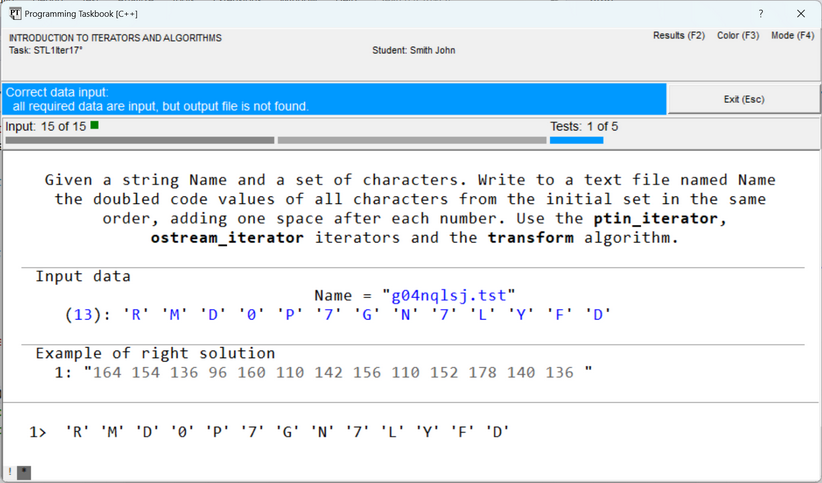
Note that if we used the After running the program, the problem book window will look like this:
All elements of the initial sequence are output in the debug section. Since this section of the window is also used for outputting notes, two square markers are displayed in its lower left corner, allowing switching between the note text and the debug data. Instead of clicking on these markers with the mouse, you can use the [Left] and [Right] keys. Now our program correctly inputs all initial data, although it does not output the results. We can consider that we have successfully passed the first stage of the solution, related to data input. To mark this fact, a green marker is displayed in the indicators section related to data input, and the information panel contains text on a light blue background: "Correct data input: all required data are input, but output file is not found". Since the results are not output, the section for obtained results is absent in the window. In our program version, the input data was not stored in memory but was immediately redirected
to the The OutIter transform(InIter first, InIter last, OutIter result, UnaryOp unop); The first two parameters of this algorithm specify the beginning and end of the source sequence
(as two iterators), the third parameter contains the iterator to the beginning of the transformed sequence,
and the last parameter represents a function object with one parameter, defining the rule by which the
elements of the source sequence should be transformed. In the simplest case, a pointer to an ordinary function
can be used as the function object.
The The transformed sequence does not necessarily have to be stored in memory. If the third parameter
of the So, to solve the task, it remains for us to define a function (let's call it int f(char c)
{
return 2 * c;
}
void Solve()
{
Task("STL1Iter17");
string s;
pt >> s;
ofstream os(s);
transform(ptin(0), ptin(), ostream_iterator<int>(os, " "), f);
}
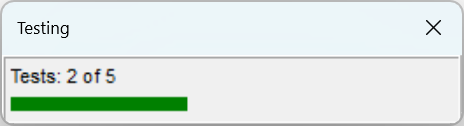
When defining the function The second, optional parameter of the When running the resulting program, a test progress window will appear on the screen, displaying the number of passed tests:
Our program is correct, so all five required tests will be passed successfully, after which the problem book window will appear with a message that the task has been solved:
Without closing the problem book window, you can view the task performance history. To do this, press the [F2] key or click the mouse on the "Results (F2)" label in the upper right corner of the window. The window of another auxiliary software module of the problem book — PT4Results — will appear on the screen, listing all runs of our program: STL1Iter17 c29/01 15:03 Acquaintance with the task.--2 STL1Iter17 c29/01 15:10 Some required data are not input. STL1Iter17 c29/01 15:14 Correct data input. STL1Iter17 c29/01 15:18 The task is solved! The "c" symbol, indicated before the date, means that the task was performed in C++. Another Variant of the Correct SolutionThe C++ 2011 standard, usually denoted as C++11, introduced a wonderful feature that significantly simplifies the definition and use of function objects: lambda expressions. A lambda expression is an anonymous function object defined at the place of its immediate use. Lambda expressions can significantly reduce the size of programs using STL and, no less importantly, make these programs more clear. Lambda expressions can be used in all modern versions of Visual Studio.
They can also be used in Code::Blocks, Dev-C++, and Visual Studio Code environments
if the Let's provide a solution variant that uses a lambda expression (defining the function void Solve()
{
Task("STL1Iter17");
string s;
pt >> s;
ofstream os(s);
transform(ptin(0), ptin(), ostream_iterator<int>(os, " "),
[](char c){return 2 * c;});
}
The simplest variant of a lambda expression (which does not perform capture of external variables) begins with empty square brackets, followed by a parameter list and the body of the defined function object, and if this body contains a single return statement (as is usually the case), then the return type does not need to be specified.
Remark. In the formulations of some tasks in the STL1Iter group,
it is stated that the initial data are located in an external text file,
and the obtained results should be sent directly to the problem book (using the
|


 button.
 button)
and the desired environment should be selected from the appeared list.
button)
and the desired environment should be selected from the appeared list.

|
|
Designed by M. E. Abramyan
and V. N. Braguilevsky |
Last revised: |