|
Programming Taskbook |
|
|
||
|
Electronic problem book on programming |
||||
|
© M. E. Abramyan (Southern Federal University, Shenzhen MSU-BIT University), 1998–2026 |


|
|
A Simple Task on Processing a Single Sequence: LinqObj4Creating a Project Template and Getting Acquainted with the Task. Additional Features of the Taskbook Window Related to Viewing File DataThe tasks in the LinqObj group are designed to reinforce skills in applying various methods of the LINQ to Objects interface. Unlike the tasks in the LinqBegin group, these tasks are not focused on studying any particular type of query; when performing them, it is required to independently select the LINQ methods that ensure obtaining the required result. Another difference from the tasks in the LinqBegin group is the more complex nature of the initial sequences: their elements are records consisting of several fields. These features bring the tasks of the LinqObj group closer to real-world problems that arise when processing complex data structures. We will consider a relatively simple task related to processing a single sequence. LinqObj4°. The initial sequence contains information about clients of the fitness center. Each element of the sequence includes the following integer fields: <Year> <Month number> <Session length (in hours)> <Client code> For each client present in the source data, determine the total session length for all years (output the total length first, then the client code). The information about each client should be displayed on a new line and ordered by descending total length, and if they are equal — by ascending client code. The project template for this task, as for any tasks
performed using the Programming Taskbook problem book,
should be created using the PT4Load software module.
After creating this project, automatically launching
the Visual Studio environment and loading the created project into it, the screen
will display the // File: "LinqObj4"
using PT4;
using System;
using System.Collections.Generic;
using System.Linq;
using System.Text;
using System.IO;
namespace PT4Tasks
{
public class MyTask : PT
{
// To read strings from the source text file into
// a string sequence (or array) s, use the statement:
// s = File.ReadLines(GetString());
// To write the sequence s of IEnumerable<string> type
// into the resulting text file, use the statement:
// File.WriteAllLines(GetString(), s);
// When solving tasks of the LinqObj group, the following
// additional methods defined in the taskbook are available:
// (*) Show() and Show(cmt) (extension methods) - debug output
// of a sequence, cmt - string comment;
// (*) Show(e => r) and Show(cmt, e => r) (extension methods) -
// debug output of r values, obtained from elements e
// of a sequence, cmt - string comment.
public static void Solve()
{
Task("LinqObj4");
}
}
}
Compared to files created for solving tasks in the LinqBegin group, template files for tasks in the LinqObj group have the following features:
When performing tasks from the LinqObj group, there is no need to use the
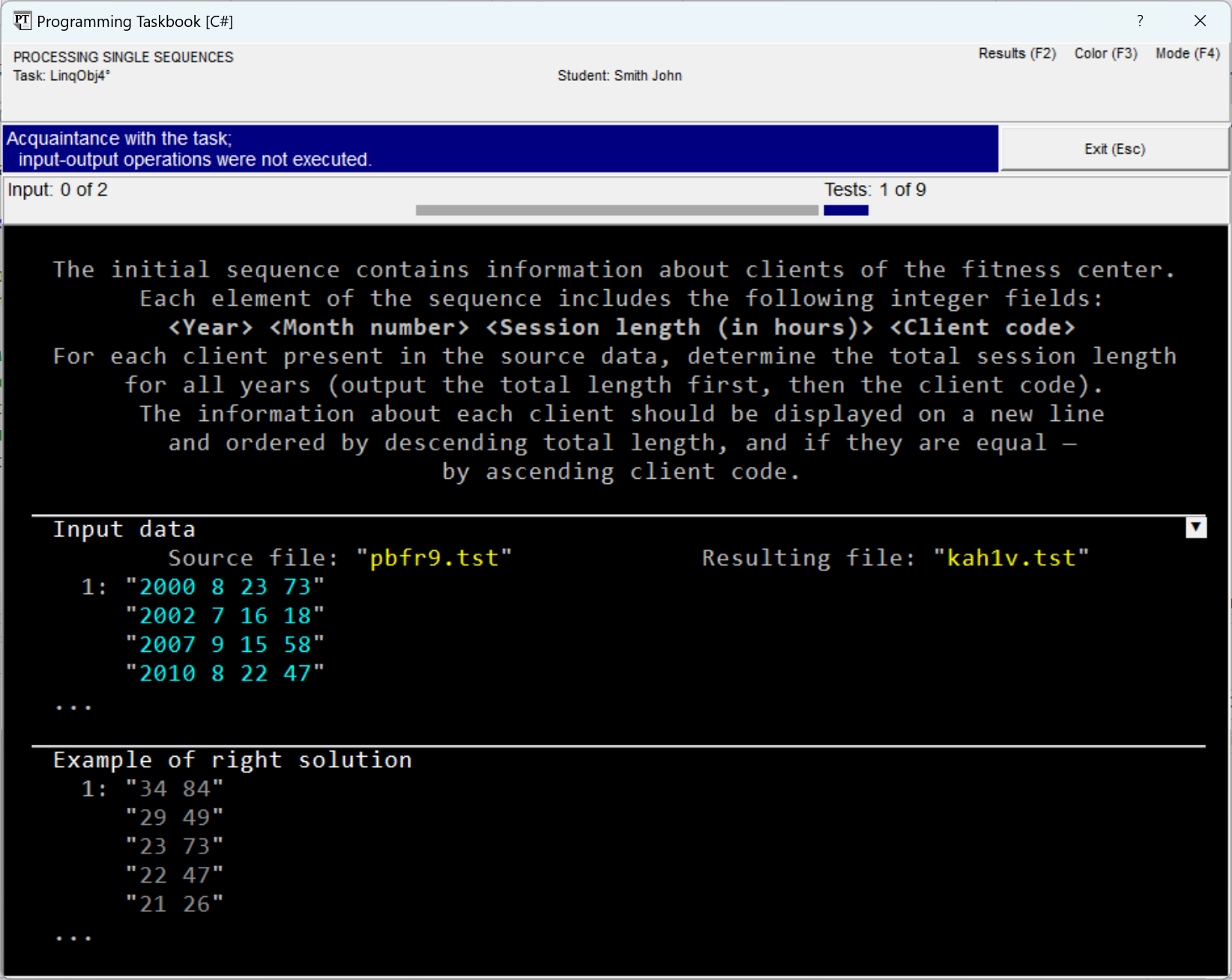
input-output methods Running the created program template, we will see on the screen the taskbook window containing the task description, as well as an example of the initial data and correct results:
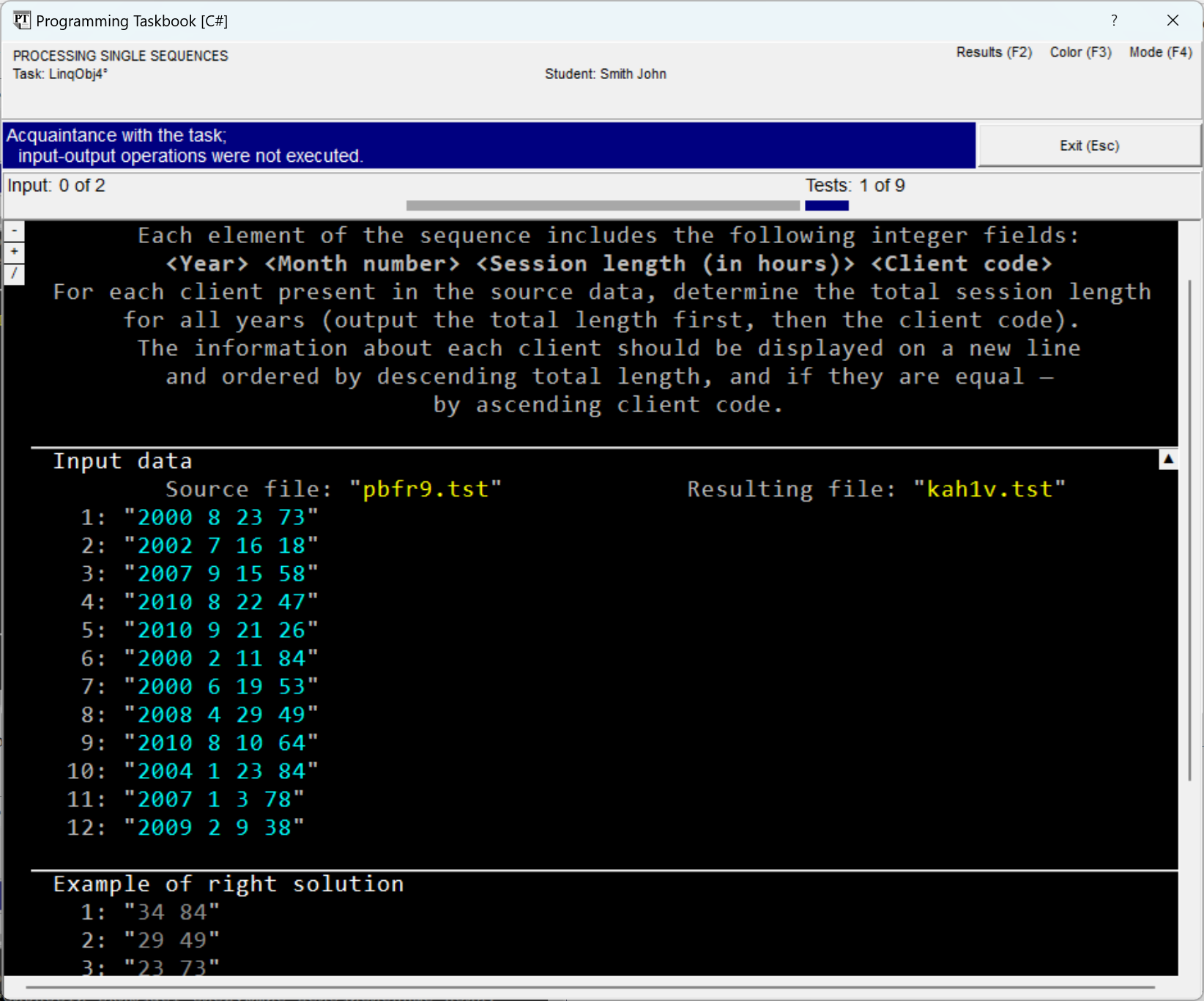
As in the introductory run of any task, the window contains three sections: with the task description, initial data, and an example of the correct solution. At the beginning of the section with initial data, two text strings are specified, accompanied by the comments "Source file" and "Resulting file". The first string defines the name of the text file containing the initial sequence. This file is automatically created by the taskbook during task initialization; having received its name, the student's program will be able to access it and read its data. The second string defines the name of the text file in which the resulting string sequence should be contained. The student's program must fill the specified file with the required data, after which the taskbook will analyze the contents of this file, comparing it with the correct solution variant. During each test run, the file names, as well as their contents, change. The taskbook window displays not only the names but also the contents of the files associated with the task. Each line of the text file is enclosed in quotes and displayed on a separate screen line; next to the first line of the file, its sequence number, equal to 1, is indicated. In the initial data and results sections, the file contents are highlighted in light-cyan color (color highlighting allows distinguishing file lines from other data, as well as from comments). In the section with the correct solution, all data is displayed in gray to distinguish them from the "real" data found by the student's program. The window variant shown in the previous figure corresponds to the abbreviated display mode of file data, in which for each file only the initial part of its contents is displayed (from one to five lines). The ellipsis (...) placed at the bottom of those sections that display abbreviated data indicates that part of the data is missing. The abbreviated display mode is convenient for initial acquaintance with the task, as it allows displaying the contents of all sections in a relatively small window. For a more detailed analysis of the data, as well as when comparing the obtained erroneous results with the example of the correct solution, the full display mode of the text file contents should be used. The concluding part of this section will be devoted to describing various capabilities related to the full display mode. To switch between the abbreviated and full display modes
of file data, just press the [Ins] key or
double-click the mouse in one of the sections with file
data. You can also click on the square marker that
appears in the upper right corner of the initial data section if the window
contains file data. The image on this marker serves as
an indicator of the mode: the variant The following figure shows the window view in the full display mode of text files. In this mode, the sequence number is indicated before each file line. When closing the window, the current display mode is remembered and restored during subsequent program runs.
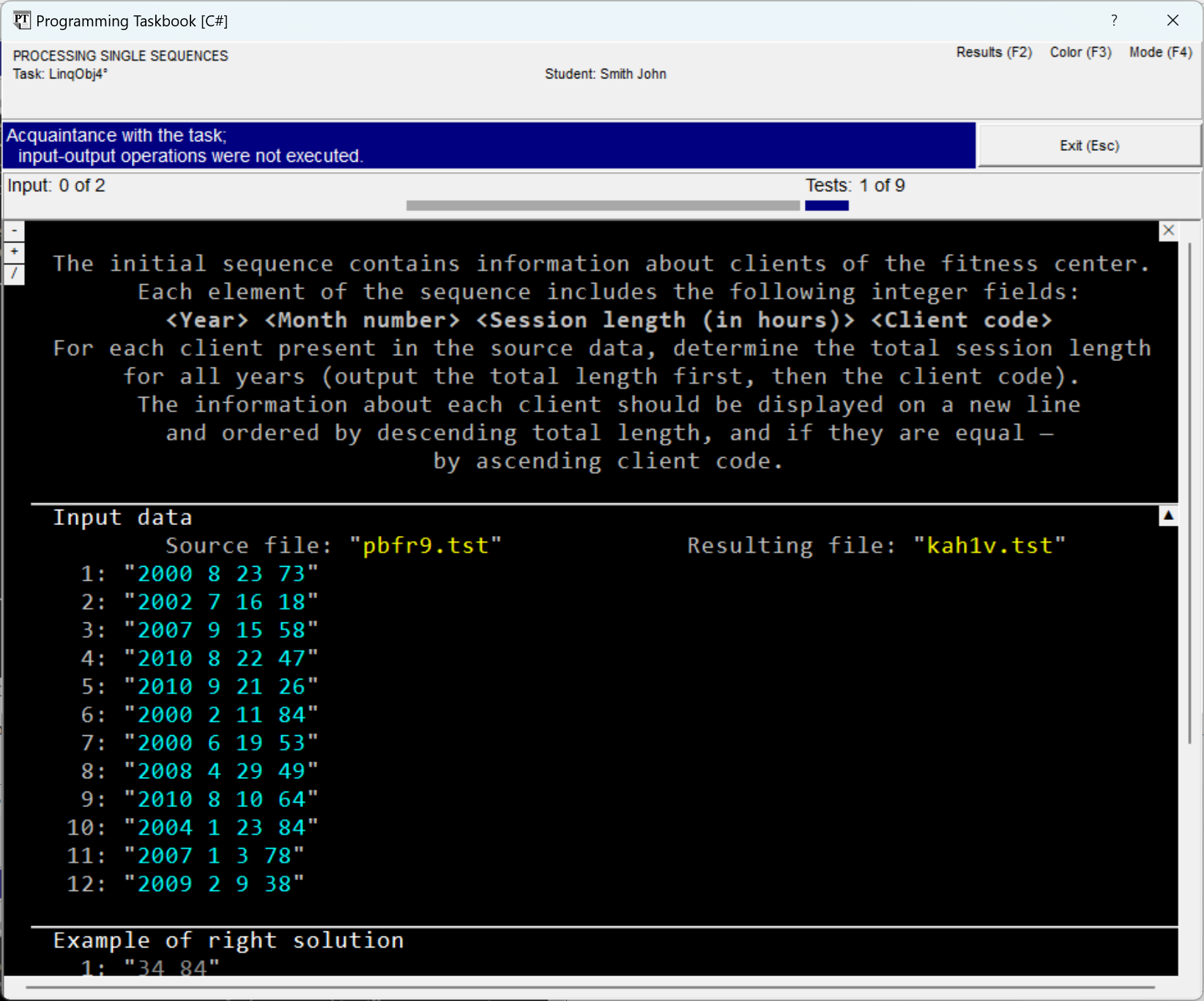
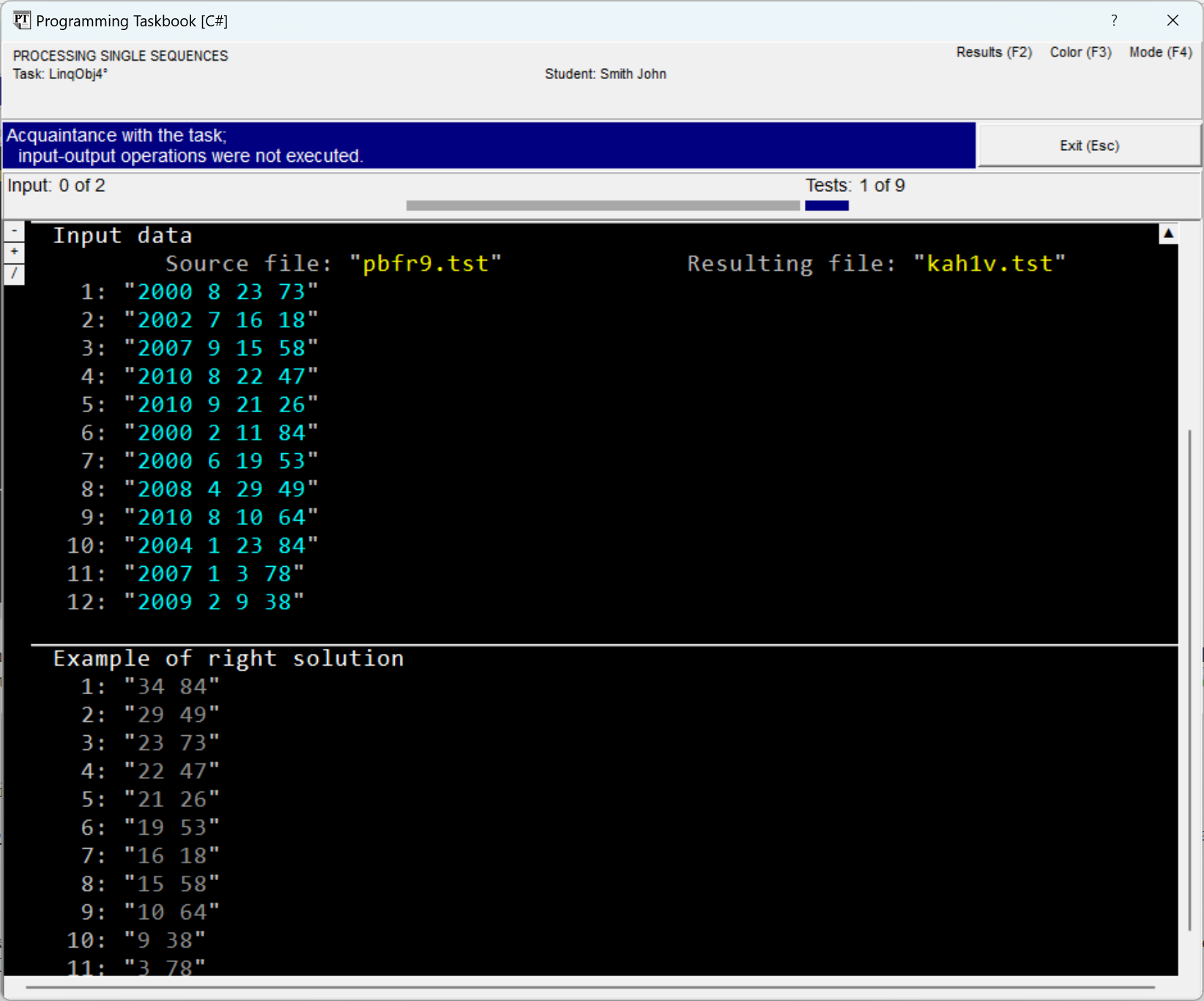
In case the window size is insufficient to display all data, the window is equipped with a scroll bar, and, moreover, additional markers are displayed on it (see the figure). Scrolling the window contents is easiest to perform using the [Home], [End], [Up], [Down], [PgUp], [PgDn] keys, as well as using the mouse wheel.
The group of markers displayed in the upper left corner of the section with
the task description is intended for quickly displaying
various sections related to the task: clicking on the marker
Finally, note the marker Performing the TaskHaving completed the review of the additional capabilities of the taskbook window and familiarized ourselves with the LinqObj4 task, let's proceed to perform it. In this task, as in all tasks of the LinqObj group, the initial
sequence is contained in an external text file. To read
all lines of this file, it is easiest to use the File.ReadLines(GetString()) The first parameter of this method defines the file name; we obtain
this name using the
Remark. When using the During subsequent processing of the initial sequence, we
will need to access individual fields of its elements, so after
reading the lines from the source file, it is necessary to convert them into
a set of fields. For this, it is sufficient to apply the File.ReadLines(GetString())
.Select(e =>
{
string[] s = e.Split(' ');
return new
{
hours = int.Parse(s[2]),
code = int.Parse(s[3])
};
})
We used a lambda expression containing not a return
value, but a set of statements, including the A variant of the lambda expression with a return value is also possible,
but it requires calling the .Select(e => new
{
hours = int.Parse(e.Split(' ')[2]),
code = int.Parse(e.Split(' ')[3])
})
Such a variant is quite acceptable for simple data sets containing a small number of fields. Note that we included in the anonymous type only data related
to the session length (field At this stage of solving the task, debug
output of the obtained sequence can be performed by adding the auxiliary method public static void Solve()
{
Task("LinqObj4");
File.ReadLines(GetString())
  .Select(e =>
  {
    string[] s = e.Split(' ');
    return new
    {
      hours = int.Parse(s[2]),
      code = int.Parse(s[3])
    };
  })
.Show();
}
When running the program, a debug section will appear in the taskbook window, containing information about the obtained sequence. Let's present the view of this window in the abbreviated file data display mode, additionally hiding the section with the description. The information panel contains the message "Some required data are not input", since in our program the name of the results file has not yet been input.
The debug section demonstrates how data of an anonymous type
are converted to their string representation: this representation
contains a list of pairs The task requires determining the total session length
for each client; for this, grouping of the
obtained sequence by client codes should be performed. Then it is necessary to
sort the grouped sequence by two
keys: the main one (total session length) — in descending order and
the secondary one (client code) — in ascending order. The sorted
sequence must be converted into a sequence of strings using the projection method Using the simplest variant of the .GroupBy(e => e.code) .OrderByDescending(e => e.Sum(c => c.hours)) .ThenBy(e => e.Key) .Select(e => e.Sum(c => c.hours) + " " + e.Key) In the provided variant, the sum of the .GroupBy(e => e.code,
(k, ee) => new {k, sum = ee.Sum(c => c.hours)})
.OrderByDescending(e => e.sum).ThenBy(e => e.k)
.Select(e => e.sum + " " + e.k)
In the expression used in the It remains to write the obtained string sequence into the
text file with the specified name. If the sequence is preliminarily associated
with the variable File.WriteAllLines(GetString(), r); When executing this statement, first the name of the results file is determined, which is read
from the set of initial data using the Combining the obtained fragments, we get the first variant of the correct solution: public static void Solve()
{
Task("LinqObj4");
var r = File.ReadLines(GetString())
.Select(e =>
{
string[] s = e.Split(' ');
return new
{
hours = int.Parse(s[2]),
code = int.Parse(s[3])
};
})
.GroupBy(e => e.code,
(k, ee) => new { k, sum = ee.Sum(c => c.hours) })
.OrderByDescending(e => e.sum).ThenBy(e => e.k)
.Select(e => e.sum + " " + e.k);
File.WriteAllLines(GetString(), r);
}
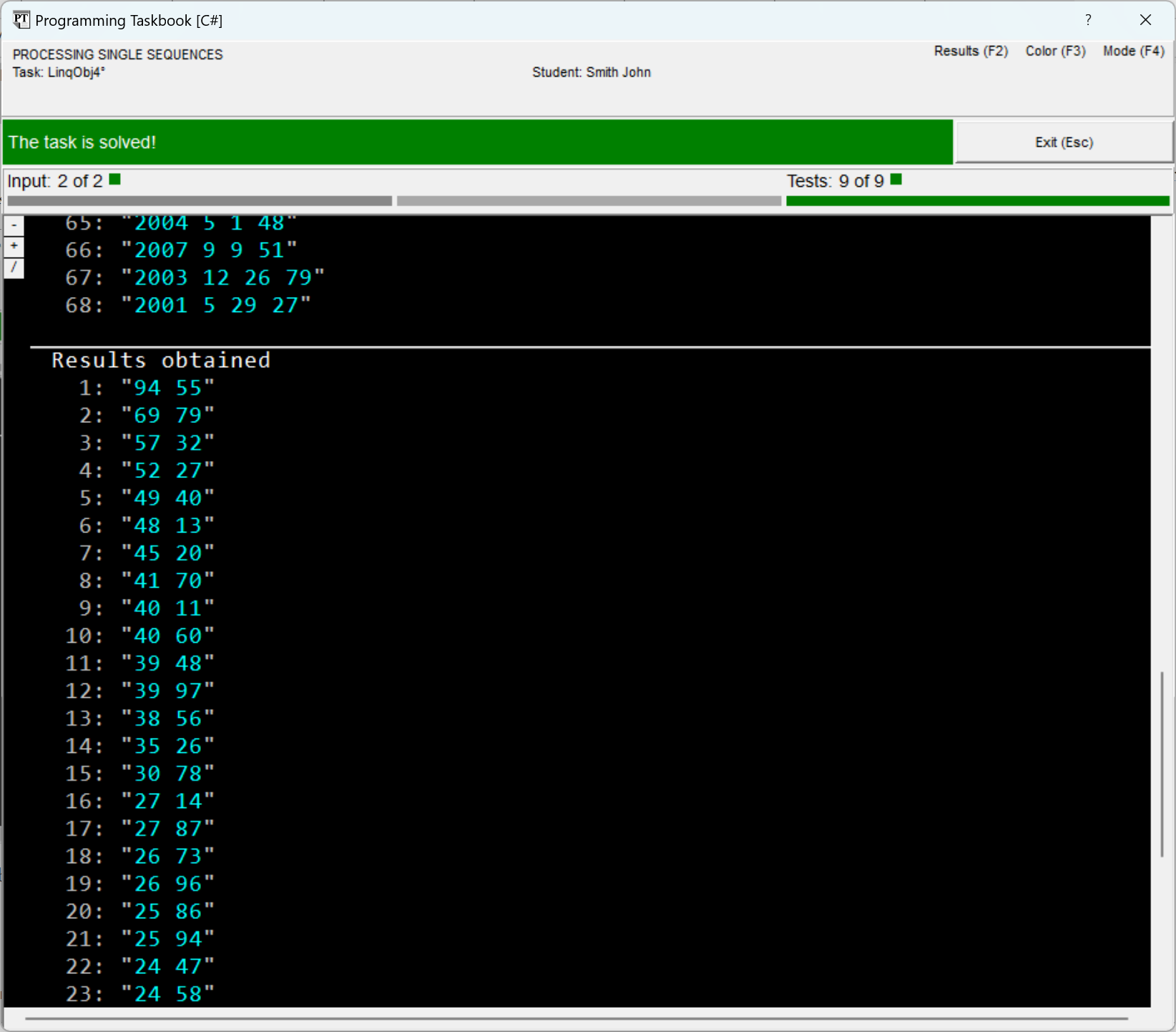
To check the correctness of the obtained solution (as well as solutions to other tasks in the LinqObj group), it must be tested on nine different test sets of initial data, among which there will be sets of relatively large size. As an example, here is the taskbook window with a message about the successful completion of the task, in which a set of 68 records was provided for processing:
Concluding the discussion of the LinqObj4 task, let's present a variant of its solution using query expressions: public static void Solve()
{
Task("LinqObj4");
var r =
from e in File.ReadLines(GetString())
let s = e.Split(' ')
select new
{
hours = int.Parse(s[2]),
code = int.Parse(s[3])
}
into e
group e.hours by e.code
into e
let sum = e.Sum()
orderby sum descending, e.Key
select sum + " " + e.Key;
File.WriteAllLines(GetString(), r);
}
Let's comment on the features of this variant. Since in the The results of executing the The The obtained solution variant has somewhat greater clarity than the first variant, primarily due to the absence of lambda expressions.
|


 with an arrow pointing down
denotes the abbreviated display mode (when hovering the mouse over
the marker in this case, the tooltip "Expand contents of the text file (Ins)"
is displayed); the variant
with an arrow pointing down
denotes the abbreviated display mode (when hovering the mouse over
the marker in this case, the tooltip "Expand contents of the text file (Ins)"
is displayed); the variant  with an arrow pointing up
denotes the full display mode (associated with it is the tooltip
"Collapse contents of the text file (Ins)").
with an arrow pointing up
denotes the full display mode (associated with it is the tooltip
"Collapse contents of the text file (Ins)").
 ensures transition to the beginning of the next section (see the figure), clicking on
the marker
ensures transition to the beginning of the next section (see the figure), clicking on
the marker  — to the beginning of the previous section. Browsing sections
is performed cyclically. The marker
— to the beginning of the previous section. Browsing sections
is performed cyclically. The marker  allows switching between
sections with results and the example of the correct solution, if the window
contains both these sections. Instead of clicking on the indicated markers,
you can press the corresponding key: [+], [–] or [/].
allows switching between
sections with results and the example of the correct solution, if the window
contains both these sections. Instead of clicking on the indicated markers,
you can press the corresponding key: [+], [–] or [/].
 , appearing in the upper right corner of
the section with the task description when the scroll bar is displayed in the window.
This marker (and the associated [Del] key) allows
hiding the section with the description, thereby increasing the window area for
displaying data from other sections. Note that the [Del] key
allows hiding the section with the description even if the marker
, appearing in the upper right corner of
the section with the task description when the scroll bar is displayed in the window.
This marker (and the associated [Del] key) allows
hiding the section with the description, thereby increasing the window area for
displaying data from other sections. Note that the [Del] key
allows hiding the section with the description even if the marker 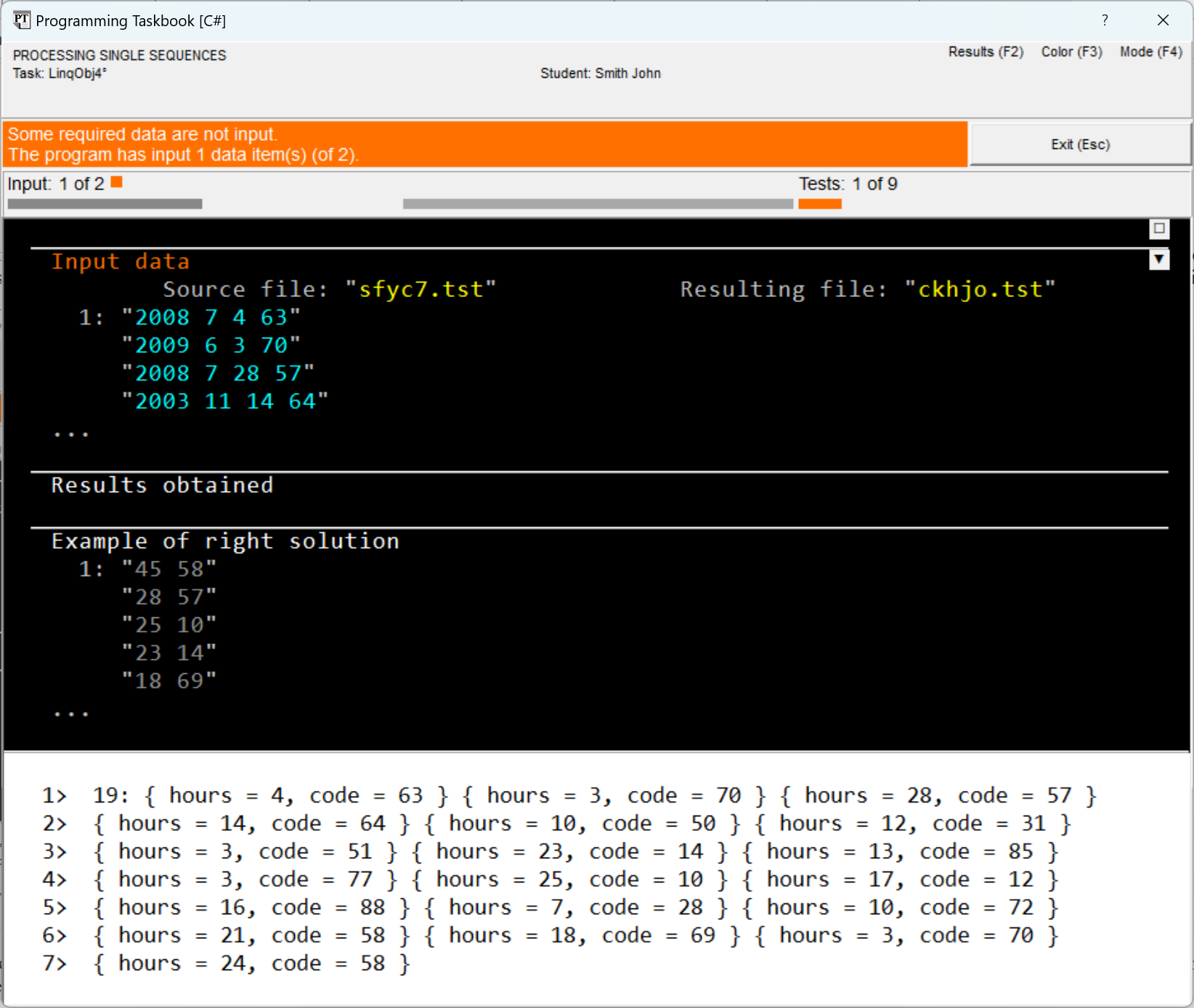
|
|
Designed by M. E. Abramyan
and V. N. Braguilevsky |
Last revised: |